
Overview
Payment Links extend the functionality of Checkouts, offering a powerful and flexible way to receive payments from your customers. They support multiple payment methods and can be accessed from anywhere, on any device, ensuring a seamless payment experience for your customers. Merchants can use Novac Payment Links for a variety of purposes, including online sales on social media, service subscriptions, loan repayments, and even donations or fundraising campaigns. This is due to the reusability nature.You can create a payment link on Novac dashboard. When you create from your dashboard they are mostly reusable, this means that you can receive inflows from a single created payment link by sending to multiple customers. However, if you want to create a checkout payment that is uniquely tied to a specific payment link for example, for a one-time or customer-specific transaction, you should create it via the API.
Prerequisite
See details
See details
To get started you must have complete all the following item on the list below:
- Create a merchant account - Ensure that you have created an account and completed KYC.
- Obtain API keys - Required to authenticate with the Novac API.
Payment Methods
See details
See details
Your clients can choose to pay via :
- Card Payment - Available in checkout payment.
- Bank transfer - Available in checkout payment.
- USSD payment - Available in checkout payment.
- Opay - Available in checkout payment.
- Palmpay - Available in checkout payment.
Create a Reusable Payment Link via Dashboard
1
Step 1 - Log in to your Novac Dashboard
Sign in to your Novac Dashboard using your account credentials.
2
Step 2 - Navigate to the Payments tab
On the side menu, navigate to the Payments tab and click on Payment Links.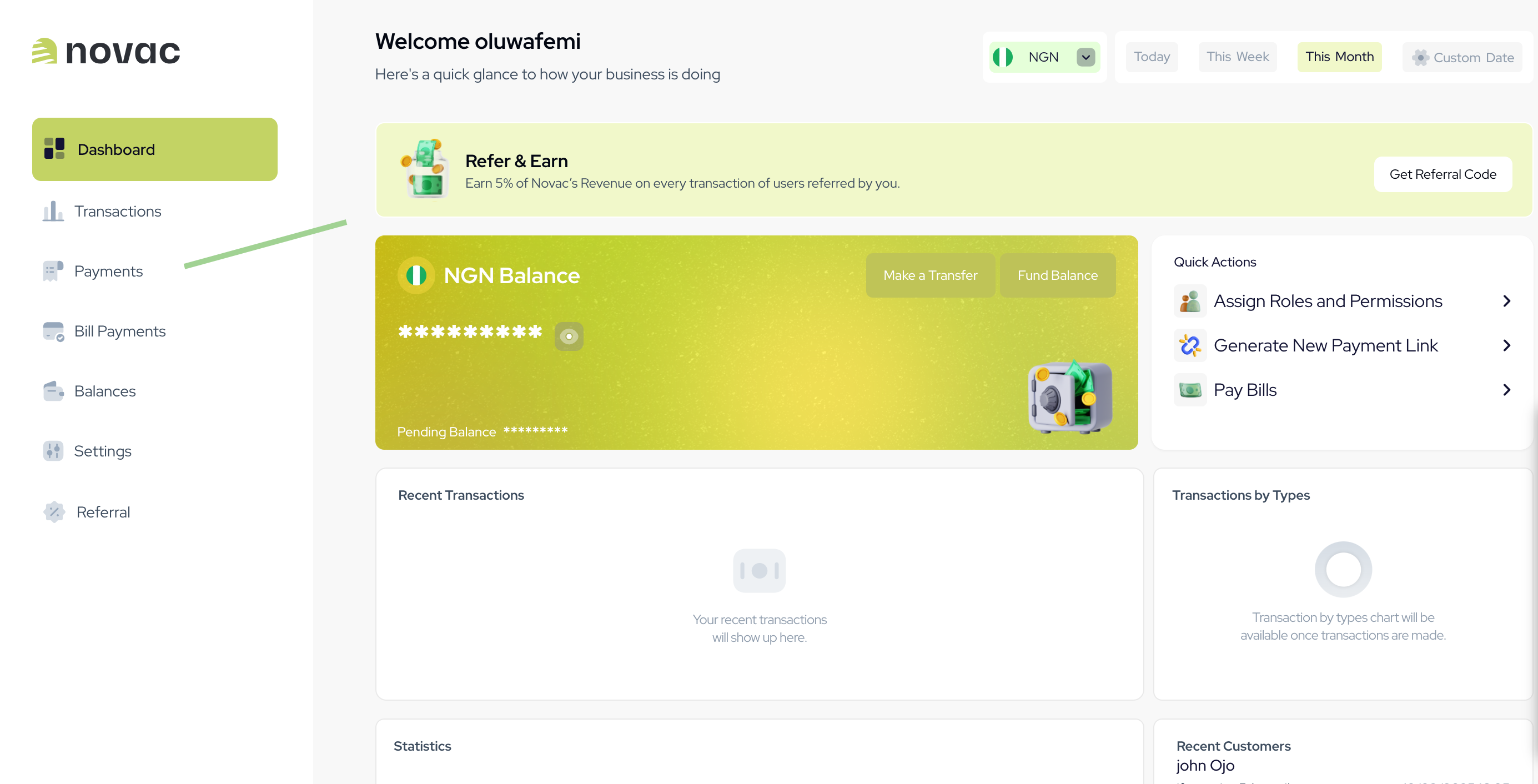
3
Step 3 - Click the ‘New Payment Link’ button
Click the New Payment Link button to create a new link.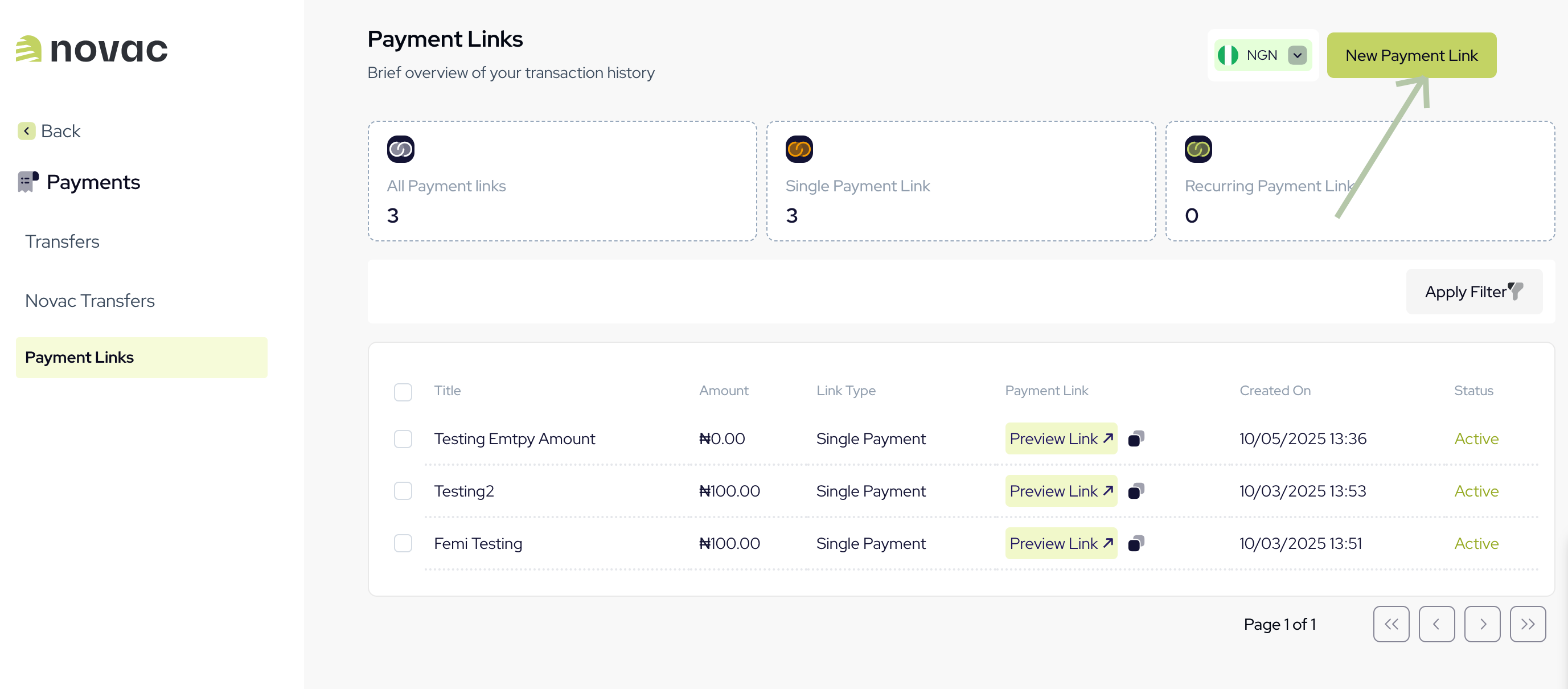
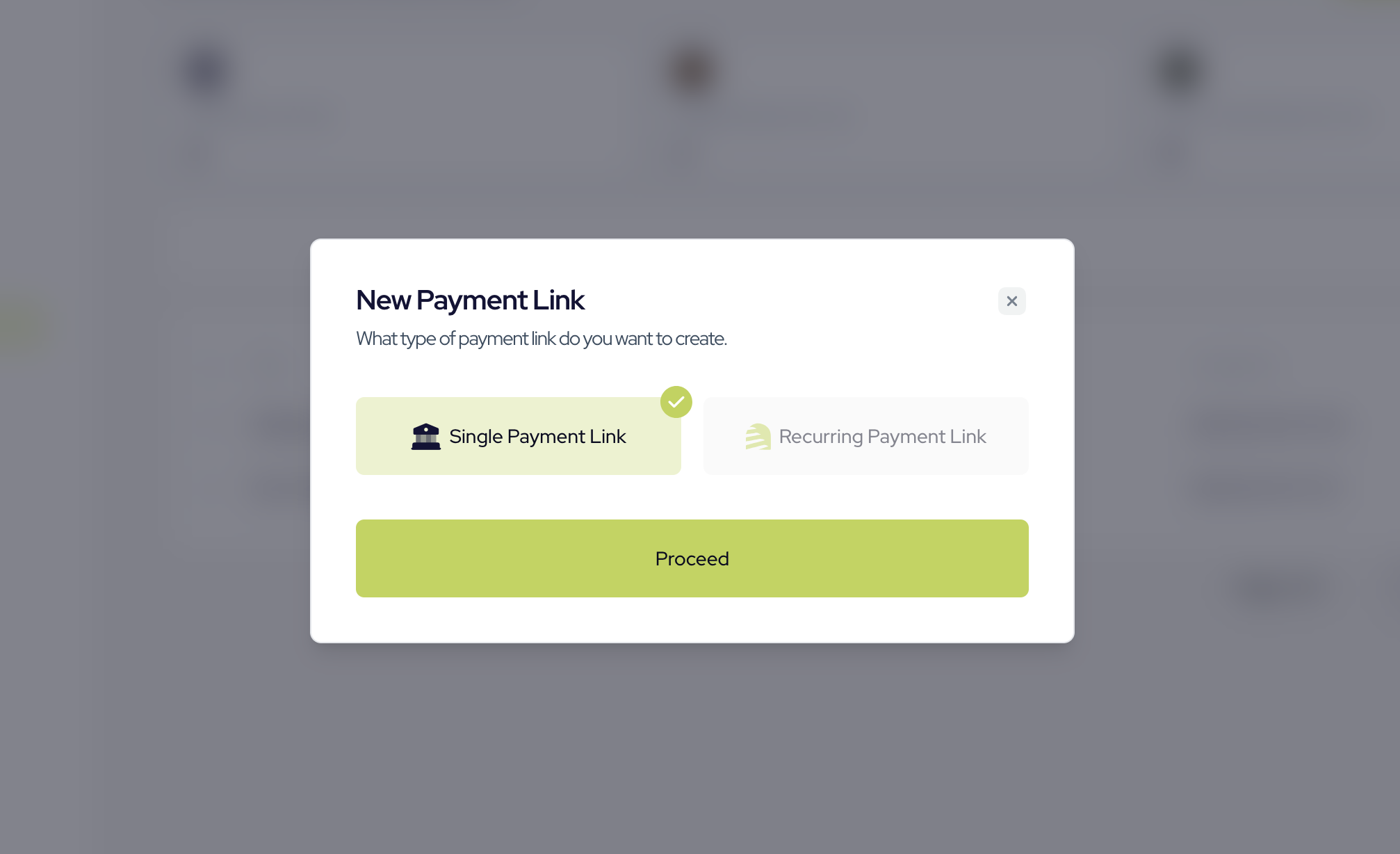
The Recurring Payment Link option can be used to collect inflows periodically. See recurring payment link for NGN cards for more details.
4
Step 4 - Complete the form
Fill in the required details for your new payment link in the form and click Create Link to complete the process.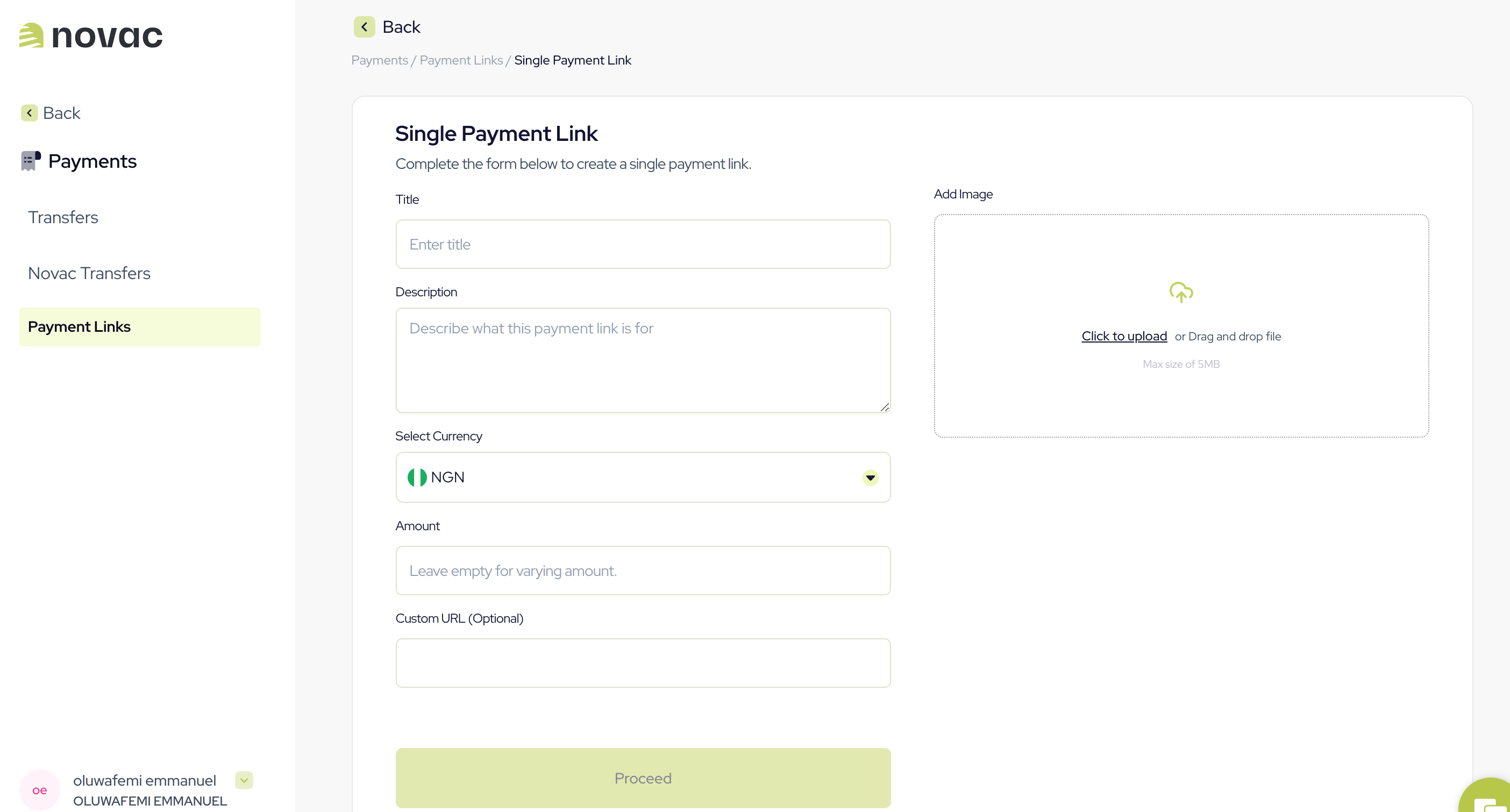
For a recurring payment link, there’s an additional field that you can use to set payment frequency. Please note that this feature is only available for business accounts only.
What’s Next?
Now that your payment link is ready, you can go beyond simply sharing the URL, you can use it programmatically to create checkout sessions that are uniquely tied to this link. This is useful when you need to:- Charge a specific customer a defined amount via the link.
- Pre-fill customer details like name and email for a smoother experience.
- Generate a one-time checkout URL that you can track individually.
- Create a checkout with a payment link reference Learn how to tie a checkout payment to your payment link and redirect your customer to complete the payment.