Overview
Roles in the Novac Dashboard help you define and manage the level of access each team member has to your business account.By creating custom roles, you can assign specific permissions based on responsibilities ensuring that only authorized users can perform sensitive actions such as initiating payouts, managing transactions, or viewing reports. The Administrator role is automatically created for the business account owner and has full permissions by default.
If you want to delegate specific responsibilities without granting full access, you can create a new role and assign only the permissions required for that team member’s tasks.
Create a new Role
Follow the steps below to create a new role.1
Step 1 - Log in to your Novac Dashboard
Sign in to your Novac Dashboard using your registered account credentials.
2
Step 2 - Navigate to the Settings tab
From the side menu, navigate to the Settings tab and click on “Roles and Permissions”.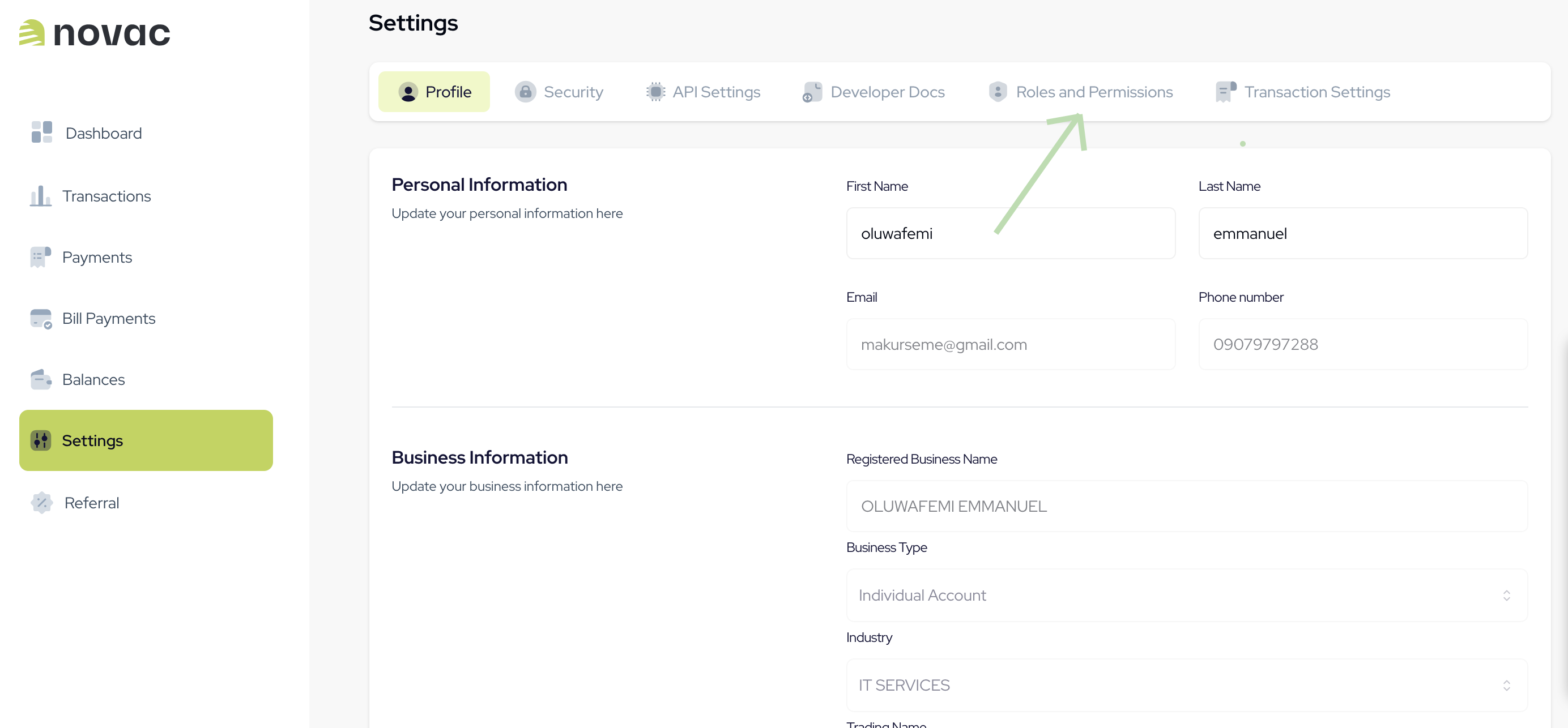
This role has full permissions and manages all account-level settings.
To add a new role, proceed to the next step.
This role has full permissions and manages all account-level settings.
To add a new role, proceed to the next step.
3
Step 3 - Click the ‘Create New Role’ button
Click on “Create New Role” to begin creating a custom role for your team member.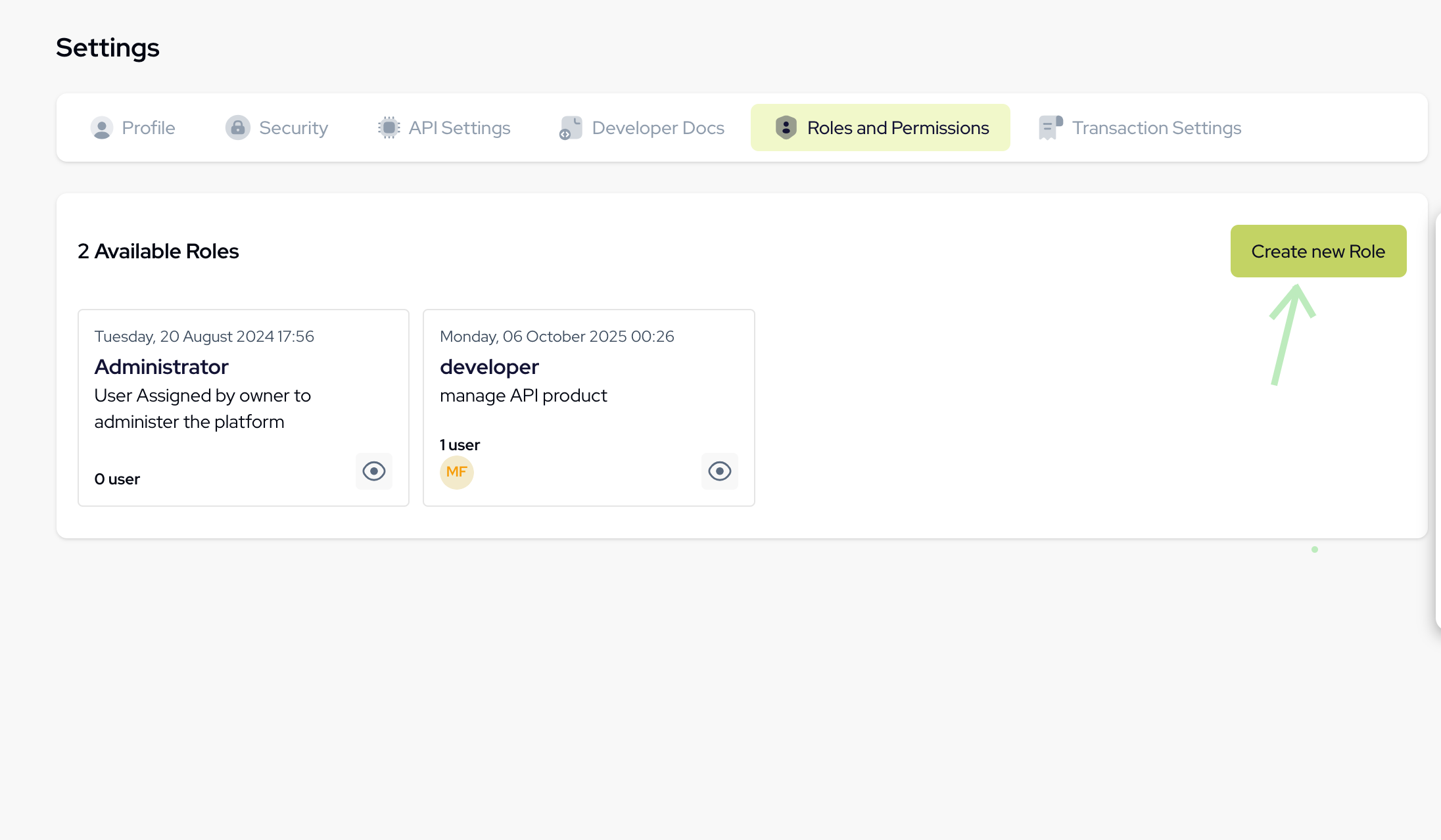
Once completed, click “Proceed to Permissions” to continue.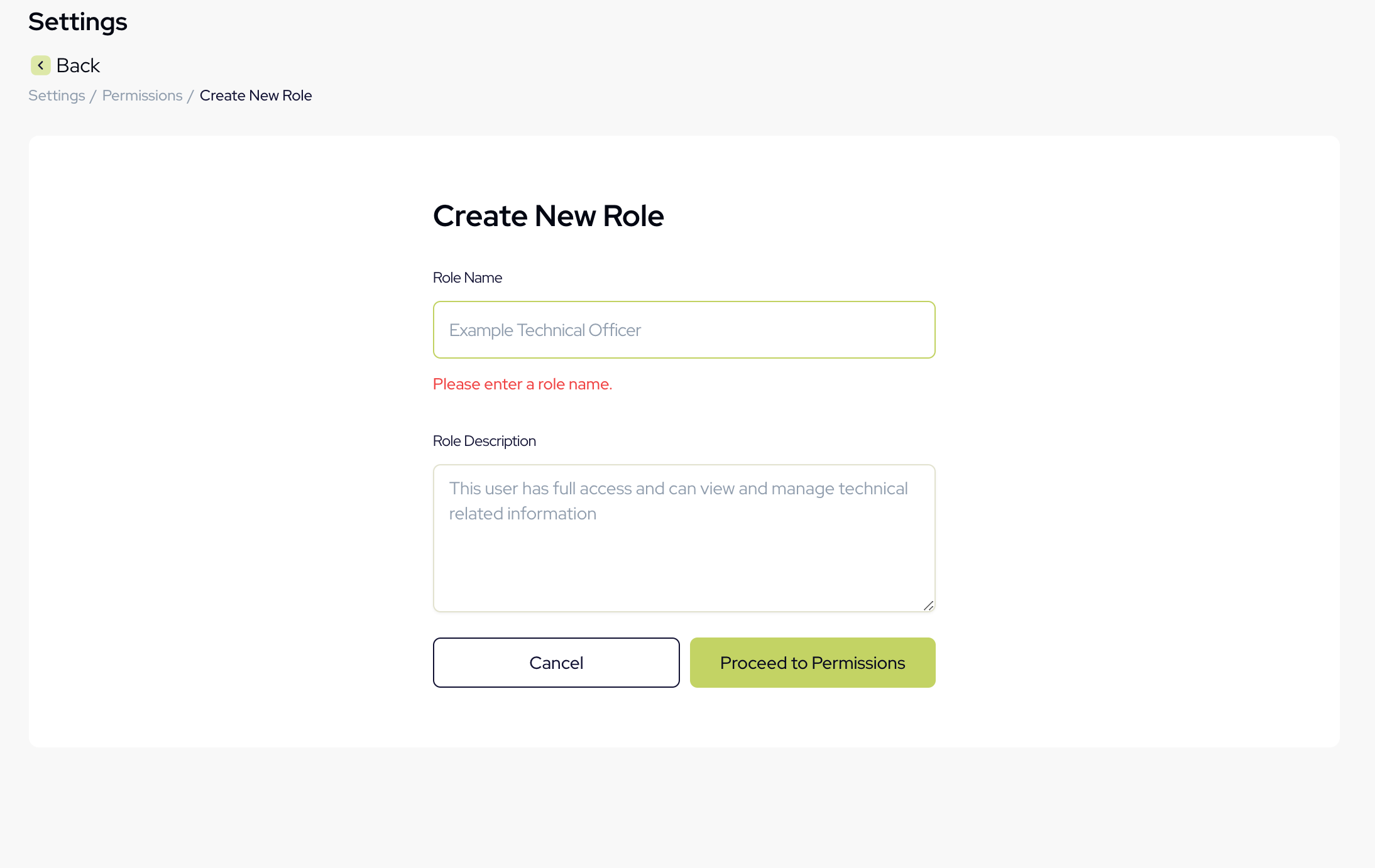
Once completed, click “Proceed to Permissions” to continue.
4
Step 4 - Select permissions for the role
On this page, select the specific permissions you want to assign to the new role.
Carefully choose the permissions that align with the team member’s responsibilities.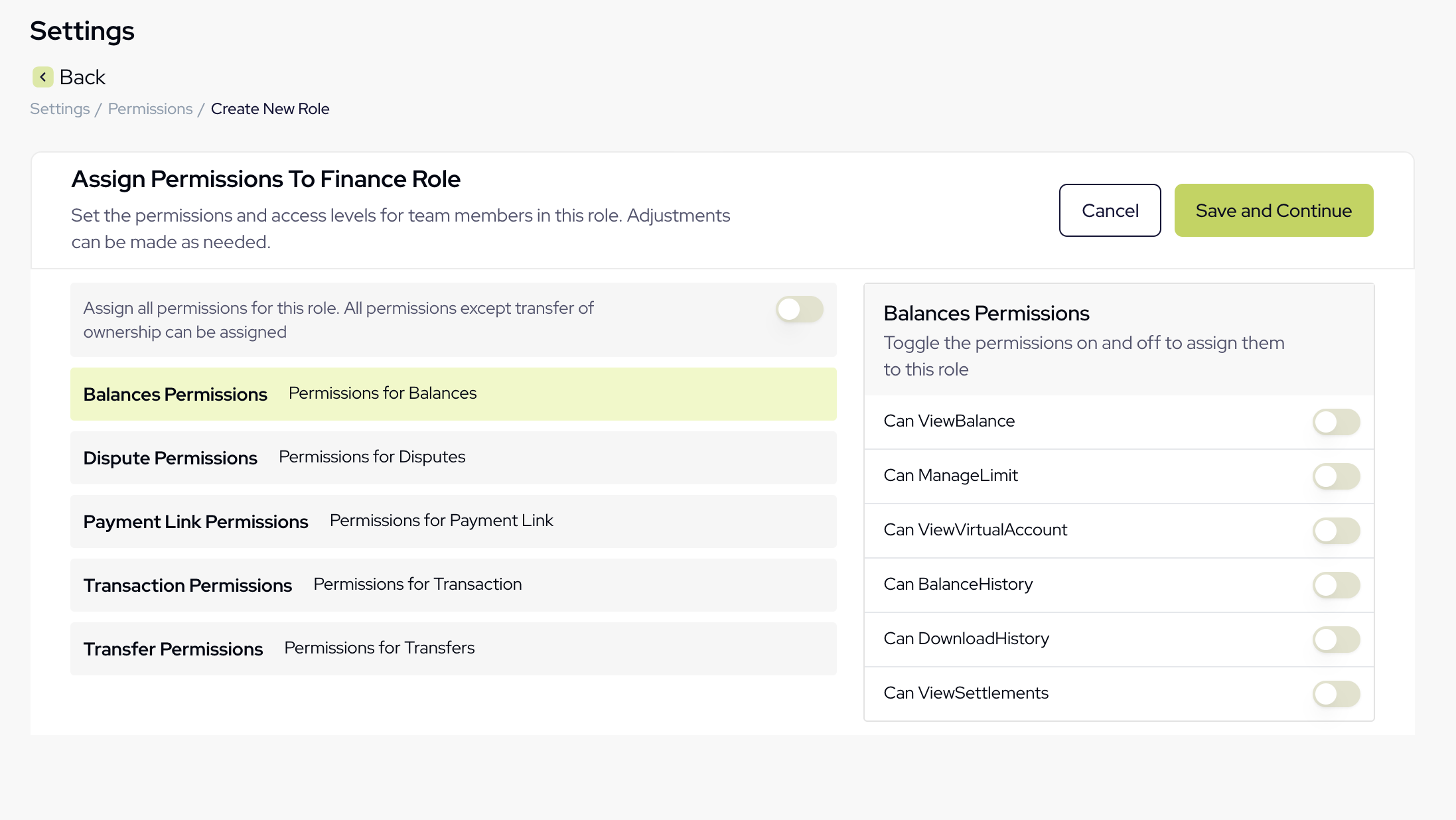
Carefully choose the permissions that align with the team member’s responsibilities.
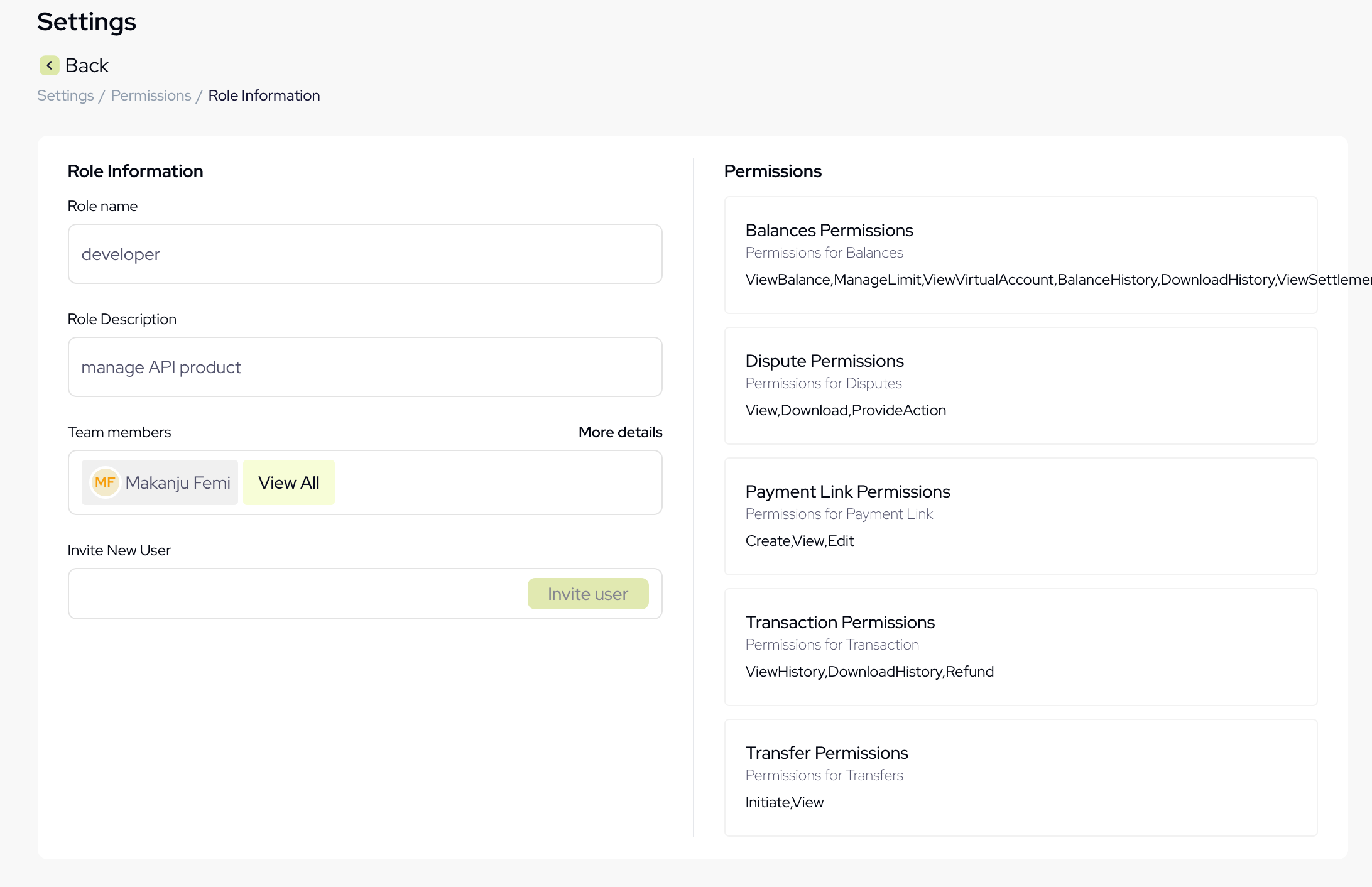
Invite a Team Member
After successfully creating a team role, click to view the details to manage the role and see its associated permissions. From this page, you can either invite a user via email to assign them to the role or remove an existing member as needed.