> ## Documentation Index
> Fetch the complete documentation index at: https://developer.novacpayment.com/llms.txt
> Use this file to discover all available pages before exploring further.
# Pay by Bank (Open Banking)
> Let customers pay directly from their bank account using open banking.
Open banking is a framework that lets customers securely share access to their bank accounts with authorized third-party providers, using standardized APIs and with the customer's explicit consent. Instead of relying on card networks or manual bank transfers, a provider can connect directly to the customer's bank, initiate a payment or read account data, and the customer approves everything inside their own banking app. This keeps banking credentials private, removes the need to enter card details, and gives merchants a way to build payment experiences on top of bank infrastructure.
Open Banking is currently available to **enterprise clients only**. Contact our team to get access.
## Prerequisites
Setting up your settlement account is **mandatory**. API calls will not succeed until it has been completed successfully.
Before initiating a pay-by-bank payment, you must:
* [Sign in to your Novac dashboard](/docs/getting-started/create-merchant-account). Ensure
you have an active account with KYC completed.
* [Activate open banking payments](/docs/getting-started/obtain-api-keys). Required before any open banking payment can be initiated.
* Get your Novac public key. This is used as the Bearer token for the API requests.
## Activate Open Banking Payment
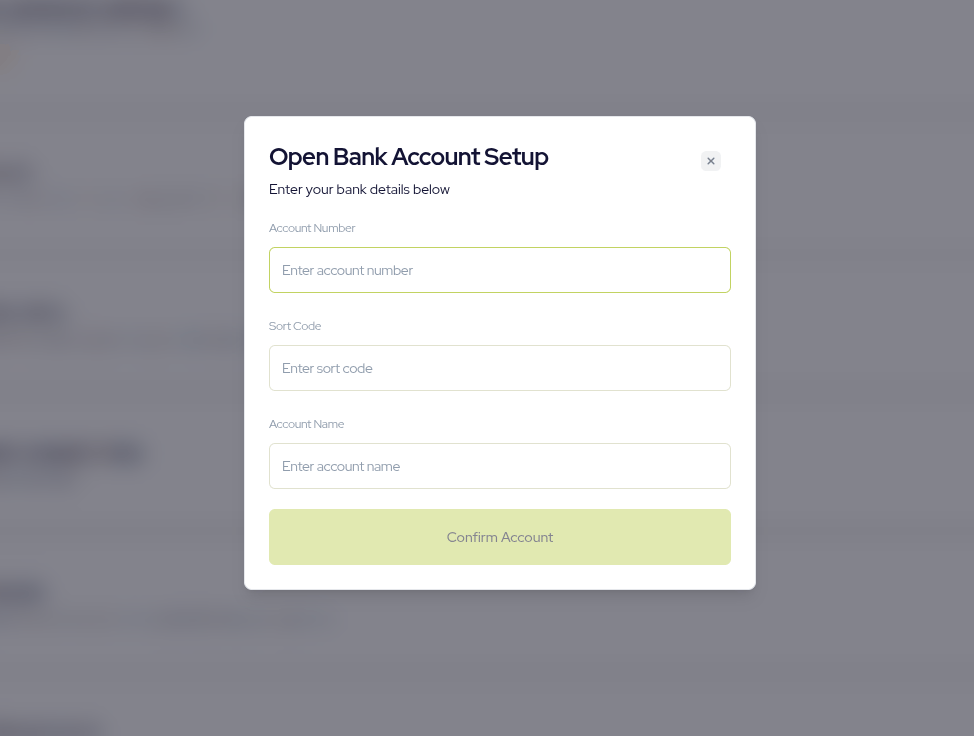
Before you can call the Open Banking APIs, you need to set up a GBP settlement account on your Novac dashboard. This is the account where your open banking payments will be settled, and the APIs will not work until it has been added successfully.
To do this, log in to your Novac dashboard and go to Settings, then Transactions Settings. There, add your GBP settlement account details as follows:
1. Account name
2. Account number
3. Sort code.
Once you save these details and the setup is successful, you can start calling the Open Banking APIs.
 ## Integration flow
The integration has four steps. First, call the bank list endpoint to get the banks that support open banking payments, and show them to your customer so they can choose one. Once the customer selects a bank, initiate the payment against that bank by sending the `bankId`, `amount`, `currency` and customer details.
The response contains a `redirectUrl`, which you use to redirect the customer to their bank to approve the payment. After they finish, you will call the verify endpoint to confirm the final status of the transaction before you fulfil the order.
```mermaid theme={null}
sequenceDiagram
participant C as Customer
participant M as Merchant
participant N as Novac API
participant B as Customer's Bank
M->>N: 1. GET api/v1/openbanking-getbanks
N-->>M: List of supported banks
M->>C: Display banks
C->>M: Select a bank
M->>N: 2. POST api/v1/checkout/initiateopenbanking
N-->>M: redirectUrl
M->>C: 3. Redirect to redirectUrl
C->>B: Approve payment in banking app
B-->>C: Payment authorised
C->>M: Return to merchant site
M->>N: 4. Verify transaction
N-->>M: Final transaction status
```
## Fetch the bank list
Retrieve the banks that support open banking payments.
```bash cURL theme={null}
curl --request GET \
--url 'https://api.novacpayment.com/api/v1/openbanking-getbanks' \
--header 'Authorization: Bearer '
```
```json expandable Response theme={null}
{
"status": true,
"message": "Successful",
"data": {
"banks": [
{
"bankId": "barclays",
"name": "Barclays",
"logoUrl": "https://api.reflowzone.io/bank-logos/barclays.svg",
"currency": "GBP"
},
{
"bankId": "revolut",
"name": "Revolut",
"logoUrl": "https://api.reflowzone.io/bank-logos/revolut.svg",
"currency": "GBP"
}
]
}
}
```
## Initiate the payment
After the customer selects a bank, initiate the payment against that bank.
```bash cURL expandable Request theme={null}
curl --request POST \
--url 'https://api.novacpayment.com/api/v1/checkout/initiateopenbanking' \
--header 'Authorization: Bearer ' \
--header 'Content-Type: application/json' \
--data '{
"bankId": "lloyds",
"transactionReference": "string",
"amount": 10.00,
"currency": "GBP",
"metaData": "{\"name\":\"test\"}",
"checkoutCustomerData": {
"email": "test@gmail.com",
"firstName": "Test",
"lastName": "Test"
},
"checkoutCustomizationData": {
"logoUrl": "",
"paymentDescription": "",
"checkoutModalTitle": ""
}
}'
```
```json Response theme={null}
{
"status": true,
"message": "Openbanking transaction initiated.",
"data": {
"redirectUrl": "https://oba.revolut.com/................."
}
}
```
Redirect the customer to the `redirectUrl` so they can approve the payment in their banking app or website.
## Verify the transaction
After the customer completes or abandons the payment, call the verify endpoint to confirm the final status of the transaction before giving value to your customer.
Learn more on how you can handle [payment verification here](/docs/accept-payment/manage-payment/verify-transaction)
Always verify the transaction on your server before fulfilling an order. Do not rely only on the customer being redirected back to your site.
## Integration flow
The integration has four steps. First, call the bank list endpoint to get the banks that support open banking payments, and show them to your customer so they can choose one. Once the customer selects a bank, initiate the payment against that bank by sending the `bankId`, `amount`, `currency` and customer details.
The response contains a `redirectUrl`, which you use to redirect the customer to their bank to approve the payment. After they finish, you will call the verify endpoint to confirm the final status of the transaction before you fulfil the order.
```mermaid theme={null}
sequenceDiagram
participant C as Customer
participant M as Merchant
participant N as Novac API
participant B as Customer's Bank
M->>N: 1. GET api/v1/openbanking-getbanks
N-->>M: List of supported banks
M->>C: Display banks
C->>M: Select a bank
M->>N: 2. POST api/v1/checkout/initiateopenbanking
N-->>M: redirectUrl
M->>C: 3. Redirect to redirectUrl
C->>B: Approve payment in banking app
B-->>C: Payment authorised
C->>M: Return to merchant site
M->>N: 4. Verify transaction
N-->>M: Final transaction status
```
## Fetch the bank list
Retrieve the banks that support open banking payments.
```bash cURL theme={null}
curl --request GET \
--url 'https://api.novacpayment.com/api/v1/openbanking-getbanks' \
--header 'Authorization: Bearer '
```
```json expandable Response theme={null}
{
"status": true,
"message": "Successful",
"data": {
"banks": [
{
"bankId": "barclays",
"name": "Barclays",
"logoUrl": "https://api.reflowzone.io/bank-logos/barclays.svg",
"currency": "GBP"
},
{
"bankId": "revolut",
"name": "Revolut",
"logoUrl": "https://api.reflowzone.io/bank-logos/revolut.svg",
"currency": "GBP"
}
]
}
}
```
## Initiate the payment
After the customer selects a bank, initiate the payment against that bank.
```bash cURL expandable Request theme={null}
curl --request POST \
--url 'https://api.novacpayment.com/api/v1/checkout/initiateopenbanking' \
--header 'Authorization: Bearer ' \
--header 'Content-Type: application/json' \
--data '{
"bankId": "lloyds",
"transactionReference": "string",
"amount": 10.00,
"currency": "GBP",
"metaData": "{\"name\":\"test\"}",
"checkoutCustomerData": {
"email": "test@gmail.com",
"firstName": "Test",
"lastName": "Test"
},
"checkoutCustomizationData": {
"logoUrl": "",
"paymentDescription": "",
"checkoutModalTitle": ""
}
}'
```
```json Response theme={null}
{
"status": true,
"message": "Openbanking transaction initiated.",
"data": {
"redirectUrl": "https://oba.revolut.com/................."
}
}
```
Redirect the customer to the `redirectUrl` so they can approve the payment in their banking app or website.
## Verify the transaction
After the customer completes or abandons the payment, call the verify endpoint to confirm the final status of the transaction before giving value to your customer.
Learn more on how you can handle [payment verification here](/docs/accept-payment/manage-payment/verify-transaction)
Always verify the transaction on your server before fulfilling an order. Do not rely only on the customer being redirected back to your site.