> ## Documentation Index
> Fetch the complete documentation index at: https://developer.novacpayment.com/llms.txt
> Use this file to discover all available pages before exploring further.
# Create Checkout with Payment Link Reference
> Learn how to create a checkout transaction using a payment link reference.
## Overview
Payment links created on the Novac dashboard are reusable by default, you can share a single link with multiple customers and receive funds from each of them. This works well for general-purpose payment pages, but there are scenarios where you need more control.
When you want to tie a checkout payment to a specific payment link, for example, to handle a one-time purchase, pre-fill customer details, or customize the checkout experience per transaction, you should initiate the checkout via the API instead.
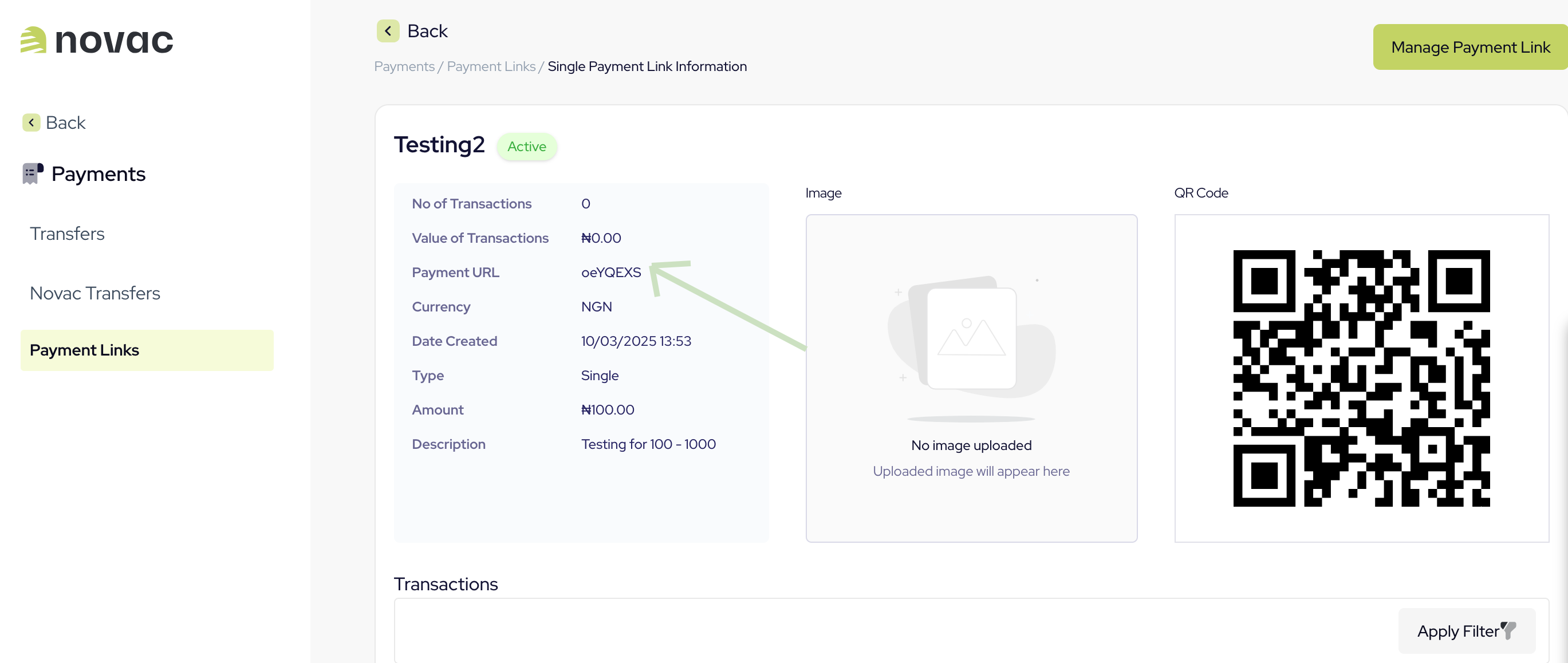
In this guide, you'll learn how to retrieve the payment URL `paymentLinkReference` from your dashboard and use it to create a checkout payment via the API.
## Prerequisite
To get started you must have completed all the following item on the list below:
* [Create a merchant account](/docs/getting-started/create-merchant-account) - Ensure that you have created an account and completed KYC.
* [Obtain API keys](/docs/getting-started/obtain-api-keys) - Required to authenticate with the Novac API.
* [Create a payment link](/docs/accept-payment/accept-payment-with-payment-links) - You need an existing payment link to reference when initiating the checkout.
***
## Create a Checkout Payment with Payment Link Reference
Creating a checkout payment with payment link reference via API allows you to further customize the experience for your customer. Every single payment link created on the dashboard comes with a unique Payment Link Reference, also known as the `paymentURL`. You can also see this as initiating a transaction via a payment link reference, and it can be used for a one-time payment.
### Finding your Payment Link Reference
You can find this reference by viewing the details of any payment link on your dashboard.
Click on a single payment link from the list to view its details:
 The `paymentURL` you use should correspond to a link that accepts **varying amounts**.\
This enables you to specify any amount dynamically via the API.\
However, if an amount was set when creating the link, that **exact amount** must be provided in the request object.
```bash expandable Request theme={null}
curl --request POST \
--url https://api.novacpayment.com/api/v1/paymentlink/initiate \
--header 'Authorization: ' \
--header 'Content-Type: application/json' \
--data '{
"paymentLinkReference": "oeXQckL",
"amount": 123,
"currency": "",
"metaData": "",
"redirectUrl": "",
"allowedPaymentOptions":"",
"checkoutCustomerData": {
"email": "",
"firstName": "",
"lastName": "",
"phoneNumber": ""
},
"checkoutCustomizationData": {
"logoUrl": "",
"paymentDescription": "",
"checkoutModalTitle": ""
}
}'
```
You can control which payment channels appear at checkout by passing `allowedPaymentOptions` in your request. Accepts a single value or multiple comma-separated values, e.g. `"CARD"` or `"CARD,PWBT,OPAY,USSD,PALMPAY,MOMO"`. [Learn more about setting payment preferences](/docs/getting-started/payment-preference)
```json expandable Response theme={null}
{
"status": true,
"message": "Transaction initialized successfully",
"data": {
"transactionReference": "string",
"amount": 100,
"statusCode": "01",
"statusMessage": "Transaction initiated successfully",
"publicKey": "string",
"paymentRedirectUrl": "string"
}
}
```
This is a created checkout payment response; the `paymentRedirectUrl` is used to redirect your customer to where they will complete the payment. It's important to know that we expose the API that powers our checkout for a custom checkout experience.
***
## What's next?
Now that you've created a checkout payment, here are a few directions to explore:
* **Split payments**: Add a [split configuration](/docs/accept-payment/split-payment/setup-primary-settlement-account) to your request to automatically distribute incoming funds across multiple settlement accounts, either by flat amount or percentage.
* **Complete the payment**: Route your customer to the [Novac prebuilt checkout](/docs/accept-payment/complete-payment/prebuilt-checkout) to complete the payment, or use the [custom checkout](/docs/accept-payment/complete-payment/custom-checkout) to build your own UI on top of our API.
The `paymentURL` you use should correspond to a link that accepts **varying amounts**.\
This enables you to specify any amount dynamically via the API.\
However, if an amount was set when creating the link, that **exact amount** must be provided in the request object.
```bash expandable Request theme={null}
curl --request POST \
--url https://api.novacpayment.com/api/v1/paymentlink/initiate \
--header 'Authorization: ' \
--header 'Content-Type: application/json' \
--data '{
"paymentLinkReference": "oeXQckL",
"amount": 123,
"currency": "",
"metaData": "",
"redirectUrl": "",
"allowedPaymentOptions":"",
"checkoutCustomerData": {
"email": "",
"firstName": "",
"lastName": "",
"phoneNumber": ""
},
"checkoutCustomizationData": {
"logoUrl": "",
"paymentDescription": "",
"checkoutModalTitle": ""
}
}'
```
You can control which payment channels appear at checkout by passing `allowedPaymentOptions` in your request. Accepts a single value or multiple comma-separated values, e.g. `"CARD"` or `"CARD,PWBT,OPAY,USSD,PALMPAY,MOMO"`. [Learn more about setting payment preferences](/docs/getting-started/payment-preference)
```json expandable Response theme={null}
{
"status": true,
"message": "Transaction initialized successfully",
"data": {
"transactionReference": "string",
"amount": 100,
"statusCode": "01",
"statusMessage": "Transaction initiated successfully",
"publicKey": "string",
"paymentRedirectUrl": "string"
}
}
```
This is a created checkout payment response; the `paymentRedirectUrl` is used to redirect your customer to where they will complete the payment. It's important to know that we expose the API that powers our checkout for a custom checkout experience.
***
## What's next?
Now that you've created a checkout payment, here are a few directions to explore:
* **Split payments**: Add a [split configuration](/docs/accept-payment/split-payment/setup-primary-settlement-account) to your request to automatically distribute incoming funds across multiple settlement accounts, either by flat amount or percentage.
* **Complete the payment**: Route your customer to the [Novac prebuilt checkout](/docs/accept-payment/complete-payment/prebuilt-checkout) to complete the payment, or use the [custom checkout](/docs/accept-payment/complete-payment/custom-checkout) to build your own UI on top of our API.