> ## Documentation Index
> Fetch the complete documentation index at: https://developer.novacpayment.com/llms.txt
> Use this file to discover all available pages before exploring further.
# Create Checkout for Mobile Money Payments
> Learn how to collect GHS mobile money payments using the Novac API.
## Overview
Novac supports mobile money (MoMo) payment collection for Ghana cedis (GHS), allowing
your customers to pay via their MTN Ghana or Telecel Ghana mobile money wallets.
Mobile money collection is currently available for GHS transactions only. Ensure your
checkout is created with `currency` set to `GHS` before proceeding with this flow.
The MoMo flow uses Novac's hosted checkout page. After creating a checkout, redirect your
customer to the returned `paymentRedirectUrl` where they will select their MoMo provider
and enter their phone number. Novac then sends a payment approval prompt to their mobile
money app. Once approved, the customer confirms on the checkout page and the transaction
is settled.
## Prerequisites
Before initiating a MoMo checkout, you must have:
* [Create a merchant account](/docs/getting-started/create-merchant-account) — Ensure
you have an active account with KYC completed.
* [Obtain API keys](/docs/getting-started/obtain-api-keys) — Required to authenticate
all requests.
***
## Create MoMo Checkout Payment
Create a checkout payment using either a [payment link reference](/docs/accept-payment/checkout/create-checkout-with-payment-link-reference)
or a [transaction reference](/docs/accept-payment/checkout/create-checkout-with-transaction-reference).
You must set `currency` to `GHS` when creating the checkout. This ensures the hosted
payment page presents Mobile Money as a payment option to your customer.
When the payment has been created, you may redirect your customer to the hosted Novac checkout for them to complete the payment or build a custom UI with the API that powers the momo checkout for custom experience.
***
## Complete the Payment
Redirect your customer to the `paymentRedirectUrl` returned when you initiated a MoMo checkout. On this page,
the customer selects **Mobile Money** as their payment method, chooses their provider,
and enters their phone number.
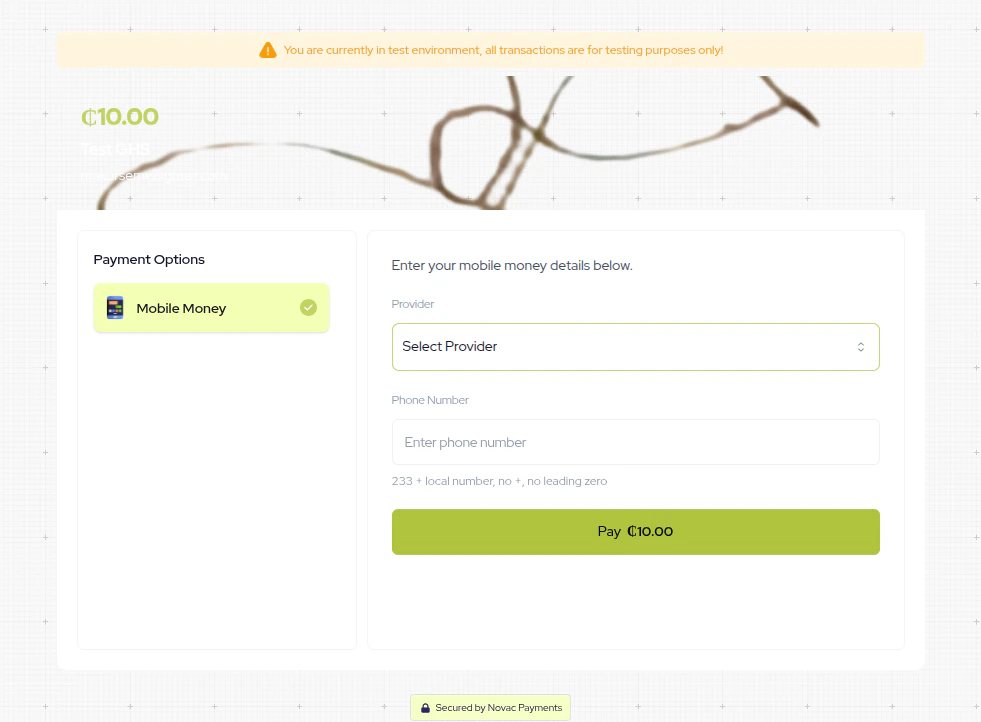 Once the customer clicks **Pay**, Novac sends a payment approval prompt to their mobile
money app.
You can also build a custom checkout experience that matches your brand using the API
that powers the MoMo checkout page. [Learn more about custom checkout](/docs/accept-payment/complete-payment/custom-checkout#momo-custom-checkout-flow).
***
## Customer Approves the Payment
After submitting their details, the checkout page transitions to a confirmation screen
instructing the customer to open their MoMo app and approve the pending payment prompt.
Once the customer clicks **Pay**, Novac sends a payment approval prompt to their mobile
money app.
You can also build a custom checkout experience that matches your brand using the API
that powers the MoMo checkout page. [Learn more about custom checkout](/docs/accept-payment/complete-payment/custom-checkout#momo-custom-checkout-flow).
***
## Customer Approves the Payment
After submitting their details, the checkout page transitions to a confirmation screen
instructing the customer to open their MoMo app and approve the pending payment prompt.
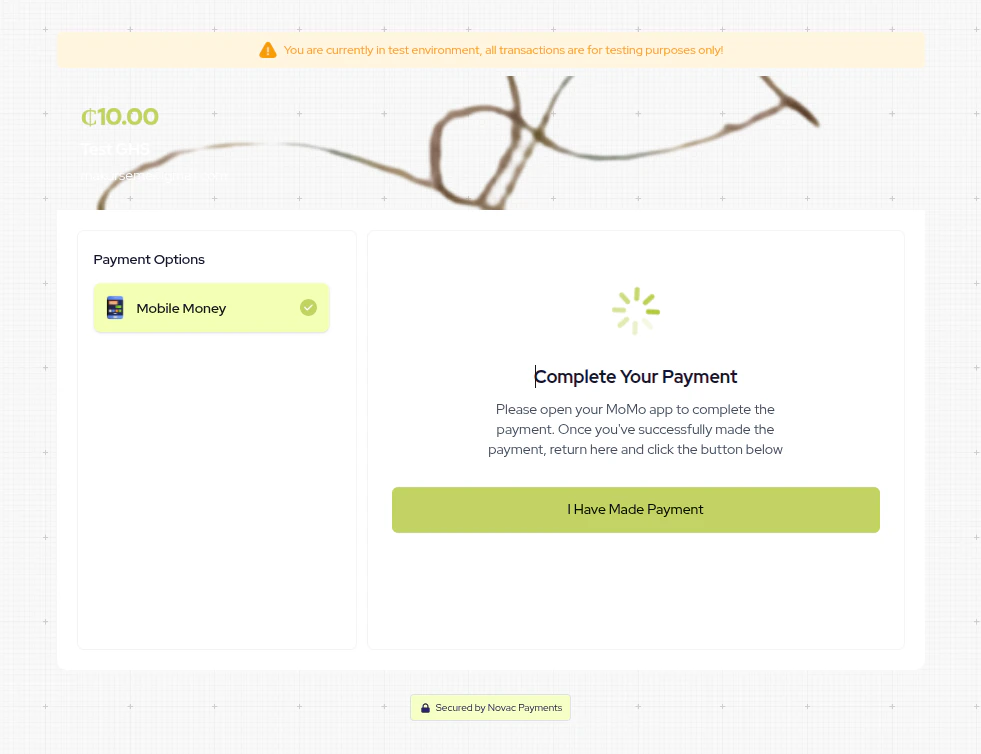 Once the customer has approved the payment in their MoMo app, they return to the checkout
page and click **I Have Made Payment** to confirm. The transaction is then settled.
***
## What's Next?
After initiating the MoMo payment, there are two ways to confirm the final transaction status:
* **Webhooks**: Novac will send a webhook notification to your configured endpoint once the customer approves or declines the payment prompt. This is the recommended approach. See [Webhook Events](/docs/api-basics/webhooks) to learn how to set up and handle incoming events.
* **Verify the transaction**: You can also poll the verify endpoint to check the transaction status. See [Verify a Transaction](/docs/accept-payment/manage-payment/verify-transaction).
Once the customer has approved the payment in their MoMo app, they return to the checkout
page and click **I Have Made Payment** to confirm. The transaction is then settled.
***
## What's Next?
After initiating the MoMo payment, there are two ways to confirm the final transaction status:
* **Webhooks**: Novac will send a webhook notification to your configured endpoint once the customer approves or declines the payment prompt. This is the recommended approach. See [Webhook Events](/docs/api-basics/webhooks) to learn how to set up and handle incoming events.
* **Verify the transaction**: You can also poll the verify endpoint to check the transaction status. See [Verify a Transaction](/docs/accept-payment/manage-payment/verify-transaction).